
Caging Selenium With Xnest
Our automated acceptance test suite for Pulse makes heavy use of Selenium to test the web UI. The ability to automate real browsers is a godsend for testing DOM/JavaScript differences, but causes a few practical issues. Probably the most irritating of these is that running the test suite continually pops up browser windows which steal focus. Any sort of focus stealing is intolerable, but having focus stolen every 20 seconds for half an hour is downright maddening.
Luckily, in the wonderful world of X, there are a multitude of ways to solve this problem. One that immediately came to mind was to use Xvfb to run the tests headless on my development box, just as I had them running on our headless CI agents. The big drawback with this method, however, is the inability to peek at what the browser is doing. It is possible to take a screenshot and open that, but it feels a little clunky.
Enter Xnest. This is an X server that can run inside a window — effectively hosted by another X server. By pointing Selenium’s DISPLAY at such a nested server, you can cage it inside a window where it is easy to observe but can’t mess with your focus:
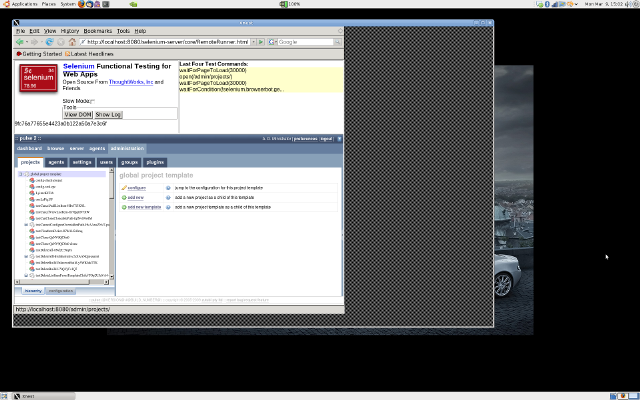
If you’d like to tame Selenium yourself, just follow the steps below. Installation commands are Ubuntu/Debian style, but should be easy to translate to other distributions:
- Install Xnest: the X server that runs inside a window:
$ sudo apt-get install xnest
- Install a simple window manager: any lightweight window manager will do. I chose fvwm as it has defaults that work fine for this case, and it reminds me of days past:
$ sudo apt-get install fvwm
- Start Xnest: choose an unused display number (most standard setups will already be using 0) — I chose 1. Note the -ac flag turns off access control, which you might want to be more careful about. The -display argument is the display the Xnest window will open in — you can skip this flag first time round but will need it if you start in a shell where DISPLAY is already set to something else:
$ Xnest :1 -display :0 -ac &
- Set DISPLAY: to get further X programs to connect to Xnest rather than your primary X server, you need to set the environment variable DISPLAY to :1 (or whatever you passed as the first argument to Xnest above):
$ export DISPLAY=:1
- Start your window manager: launch the lightweight manager you installed above to control windows in your nested X instance:
$ fvwm &
- Run your tests: however you normally would:
$ ant accept.master
Viola! You should now be able to watch your tests as they run, but contained completely within the Xnest window where they won’t interrupt your normal flow. Now if only my IDE would stop stealing my focus too…

This entry was posted on Tuesday, March 10th, 2009 at 2:30 am and is filed under Agile, Technology, Testing. You can follow any responses to this entry through the RSS 2.0 feed. You can leave a response, or trackback from your own site.


March 10th, 2009 at 9:59 am
We do this for lots of our tests, however I recommend Xephyr over Xnest because Xephyr is closer in performance and features to a “real” X server (e.g. Xnest doesn’t support many modern X extensions).
March 11th, 2009 at 10:09 pm
Hi Rohan,
Thanks for the tip, it sounds like I need to check out Xephyr too.