
Android JUnit XML Reports: Now With Test Durations
I’ve been planning to add test case durations to the XML reports generated by android-junit-report for some time. This morning, however, the magic of open source caught up with me. I received a pull request from another GitHub user who had implemented durations already!
So, with thanks to Tim from todoroo, there is a new release of android-junit-report which outputs the duration (in seconds) for each test case. This matches the output produced by the regular Ant JUnit report task, and thus should be compatible with all tools that read the format. Durations are not added to test suites, for the same reason the test case counts are not: it would require buffering. For my own use this is no big deal, because Pulse will sum the times of all cases to give an idea of the total suite time when it is not provided directly.
You can grab this new version of (1.1, build 4) from the GitHub downloads page. Or, as always, you can access the latest release build directly from the build server (click on “jar” in the “featured artifacts” table on the right of the page).
Pulse Continuous Integration Server 2.2!
Big news today: Pulse 2.2 has graduated to stable! This release includes a stack of new features and improvements, including:
- Build UI overhaul: all tabs improved and restyled.
- New logs tab: making it easier to access stage logs.
- Featured artifacts: choose which artifacts should appear prominently.
- Build navigator: easily move forward and backward through history.
- Working copy browser: view working copies for in progress builds.
- Move refactoring: move projects and agents in the template hierarchy.
- Template navigation: navigate directly up and down a hierarchy.
- Subscription by label: subscribe to notifications by project groups.
- Agent executing stages: see what all agents are building at a glance.
- Subversion exports: for faster and smaller builds.
- Performance improvements: key for larger installations.
See the new in 2.2 page for full details.
In conjunction with this release, we’ve also given our website a complete overhaul. The new site has a fresher look, and communicates the key features of Pulse more directly. The updates also include some new features:
- RSS feeds for news items.
- Links to our latest blog posts on the front page.
- An improved buying process, allowing multiple licenses to be purchased in one transaction.
- Self-service renewal payments – just enter your current license key and go!
- A more user-friendly downloads page.
We hope you enjoy the new release, and the new site. And please, let us know what you think!
Simpler Ant Builds With the Ant Script Library
Introduction
Ant may be unfashionable these days, but it still has its advantages. Key among these are familiarity and simplicity: most Java developers have worked with Ant, and with an Ant build what you get is what you see. A major disadvantage, though, is that Ant provides very little out-of-the-box. When you start a new project, you’ve got a lot of grunt work to endure just to get your code compiled, packaged, and tested. An all-too-common solution, in the grand tradition of make, is to copy a build file from an existing project as an easy starting point.
Over the years, though, Ant has gradually expanded support for creating reusable build file snippets. On top of this a few projects have emerged which aim to simplify and standardise your Ant builds, including:
- EasyAnt
- Ant Master Build Scripts
- Ant Script Library
Today I’ve taken my first proper look at the latter, and so far I like what I see.
The Ant Script Library
In the author Joe Schmetzer’s own words:
The Ant Script Library (ASL) is a collection of re-usable Ant scripts that can be imported into your own projects. The ASL provides a number of pre-defined targets that simplify setting up build scripts for a new project, bringing re-use and consistency to your own Ant scripts.
ASL consists of several Ant XML files, each of which provides a group of related functionality via predefined targets. For example, the asl-java-build.xml file defines targets for compiling and packaging Java code. The asl-java-test.xml file extends this with the ability to run JUnit tests, and so on. Essentially, ASL packages up all the grunt work, allowing you to concentrate on the small tweaks and extra targets unique to your project. The modular structure of ASL, combined with the fact that it is just Ant properties and targets, makes it easy to take what you like and leave the rest.
An Example
Allow me to illustrate with a simple project I have been playing with. This project has a straightforward directory structure:
- <project root>
- asl/ – the Ant Script Library
- build.xml – Ant build file
- lib/ – Jar file depedencies
- src/ – Java source files
- test/ – JUnit-based test source files
To add ASL to my project, I simply downloaded it from the project download page and unpacked it in the asl/ subdirectory of my project1. Then I can start with a very simple build file that supports building my code and running the tests:
<?xml version="1.0" encoding="utf-8"?>
<project name="zutubi-android-ant" default="dist">
    <property name="java-build.src-dir" location="src"/>
    <property name="java-test.src-dir" location="test"/>
    <property name="java-build.lib-dir" location="libs"/>
    <property name="asl.dir" value="asl"/>
    <import file="${asl.dir}/asl-java-build.xml"/>
    <import file="${asl.dir}/asl-java-test.xml"/>
</project>
Notice that I am using non-standard source locations, but that is easily tweaked using properties which are fully documented. With this tiny build file, let’s see what targets ASL provides for me:
$ ant -p
Buildfile: build.xml
Main targets:
 clean                 Deletes files generated by the build
 compile               Compiles the java source
 copy-resources        Copies resources in preparation to be packaged in jar
 dist                  Create a distributable for this java project
 generate              Generates source code
 jar                   Create a jar for this java project
 test-all              Runs all tests
 test-integration      Runs integration tests
 test-run-integration  Runs the integration tests
 test-run-unit         Runs the unit tests
 test-unit             Runs unit tests
Default target: dist
It’s delightfully simple!
Adding Reports
It gets better: ASL also provides reporting with tools like Cobertura for coverage, FindBugs for static analysis and so on via its asl-java-report.xml module. The full range of supported reports can be seen in the report-all target:
<target name="report-all"
        depends="report-javadoc, report-tests, report-cobertura, report-jdepend, report-pmd, report-cpd, report-checkstyle, report-findbugs"
        description="Runs all reports"/>
Having support for several tools out-of-the-box is great. For my project, however, I’d like to keep my dependencies down and I don’t feel that I need all of the reporting. Although the choice of reports is not something that is parameterised by a property, it is still trivial to override by providing your own report-all target. This shows the advantage of everything being plain Ant targets:
<?xml version="1.0" encoding="utf-8"?>
<project name="zutubi-android-ant" default="dist">
    <property name="java-build.src-dir" location="src"/>
    <property name="java-test.src-dir" location="test"/>
    <property name="java-build.lib-dir" location="libs"/>
    <property name="asl.dir" value="asl"/>
    <import file="${asl.dir}/asl-java-build.xml"/>
    <import file="${asl.dir}/asl-java-test.xml"/>
    <import file="${asl.dir}/asl-java-report.xml"/>
    <target name="report-all"
            depends="report-javadoc, report-tests, report-cobertura, report-pmd, report-checkstyle"
            description="Runs all reports"/>
</project>
Here I’ve included the java-report module, but defined my own report-all target that depends on just the reports I want. This keeps things simple, and allows me to trim out a bunch of ASL dependencies I don’t need.
Conclusion
I’ve known of ASL and such projects for a while, but this is the first time I’ve actually given one a go. Getting started was pleasantly simple, as was applying the small tweaks I needed. So next time you’re tempted to copy an Ant build file, give ASL a shot: you won’t regret it!
—
1 In this case I downloaded the full tarball including dependencies, which seemed on the large side (21MB!) but in fact can be easily trimmed by removing the pieces you don’t need. Alternatively, you can start with the basic ASL install (sans dependencies) and it can pull down libraries for you. Sweet :).
Android Testing: XML Reports for Continuous Integration
Summary
This post introduces the Android JUnit Report Test Runner, a custom instrumentation test runner for Android that produces XML test reports. Using this runner you can integrate your Android test results with tools that understand the Ant JUnit task XML format, e.g. the Pulse Continuous Integration Server.
The motivation and details of the runner are discussed below. For the impatient: simply head on over to the project home page on GitHub and check out the README.
Introduction
If you’ve been following my recent posts you’ll know that I’ve been figuring out the practical aspects of testing Android applications. And if you’ve been following for longer, you might know that my day job is development of the Pulse Continuous Integration Server. So it should come as no surprise that in my latest foray into the world of Android testing I sought to bring the two together :).
Status Quo
Out of the box, the Android SDK supports running functional tests on a device or emulator via instrumentation. Running within Eclipse, you get nice integrated feedback. Unfortunately, though, there are no real options for integrating with other tools such as continuous integration servers. Test output from the standard Ant builds is designed for human consumption, and lacks the level of detail I’d like to see in my build reports.
The Solution
On the upside, having access to the Android source makes it possible to examine how the current instrumentation works, and therefore how it can be customised. I found that the default InstrumentationTestRunner may be fairly easily extended to hook in extra test listeners. So I’ve implemented a custom JUnitReportTestRunner that does just that, with a listener that generates a test report in XML format. The format is designed to be largely compatible with the output of the Ant JUnit task’s XML formatter — the most widely supported format in the Java world. Tools like Pulse can read in this format to give rich test reporting.
How It Works
As mentioned, the JUnitReportTestRunner extends the default InstrumentationTestRunner, so it can act as a drop-in replacement. The custom runner acts identically to the default, with the added side-effect of producing an XML report.
For consistency with the SDK’s support for generating coverage reports, the XML report is generated in the file storage area of the target application. The default report location is something like:
/data/data/<tested application package>/files/junit-report.xml
on the device. To retrieve the report, you can use adb pull, typically as part of your scripted build.
Using the Runner
Full details on using the runner are provided in the README on the project home page. Briefly:
- Add the android-junit-report-<version>.jar to the libraries for your test application.
- Replace all occurrences of android.test.InstrumentationTestRunner with com.zutubi.android.junitreport.JUnitReportTestRunner:
- In the android:name attribute of the instrumentation tag in you test application’s AndroidManifest.xml.
- In the test.runner property in the Ant build for your test application (before calling the Android setup task).
- In the Instrumentation runner field of all Android JUnit Run Configurations in your Eclipse project.
- Add logic to your Ant build to run adb pull to retrieve the report after the tests are run.
As an example for retrieving the report in your Ant build:
<target name="fetch-test-report">
    <echo>Downloading XML test report...</echo>
    <mkdir dir="${reports.dir}"/>
    <exec executable="${adb}" failonerror="true">
        <arg line="${adb.device.arg}"/>
        <arg value="pull" />
        <arg value="/data/data/${tested.manifest.package}/files/junit-report.xml" />
        <arg value="${reports.dir}/junit-report.xml" />
    </exec>
</target>
In the Wild
You can see a complete example of this in action in my simple DroidScope Android application. The custom runner is applied in the droidscope-test application in the test/ subdirectory. You can even see the test results being picked up by Pulse on our demo server. Note that some of the tests are pure unit tests, which are run on a regular JVM, whereas others are run with the custom runner on an emulator. It’s nice for all the results to be collected together!
Android Testing: Using Pure Unit Tests
Introduction
The Android SDK comes with support for testing, allowing tests to be run on an Android device (or emulator) via instrumentation. This is useful for functional tests that require a realistic environment, but for the majority of tests it is overkill. The instrumentation and emulation layers add complexity to the process, making tests much slower to run and harder to debug.
The good news is that there is no need to run most of your tests via instrumentation. Because Android applications consist of regular Java code, it is possible to isolate much of the implementation from the Android environment. In fact, if you’ve separated concerns in your application already, it’s likely that large parts of it are already independent of the Android APIs. Those sections of your code can be tested on a regular JVM, using the rich ecosystem of tools available for unit testing.
Unit Testing Requirements
To put this idea into practice, I set out the following requirements for unit testing my Android application:
- The unit tests should run on a regular JVM, with no dependency on the Android APIs or tools.
- It should be possible to run the tests within Eclipse.
- It should be possible to run tests using Ant.
- Running tests via Ant should produce reports suitable for use with a Continuous Integration server.
These requirements allow the tests to be run quickly within the development environment, and on every commit on a build server.
Adding a Unit Testing Project
In keeping with my existing Android project setup, I decided to use an additional project specifically for unit testing. To recap, in the original setup I had two projects:
- The main project: containing the application itself.
- The test project: containing an Android test project for instrumentation testing, in a test/ subdirectory of the root.
Both projects had Ant build files and Eclipse projects. Similar to the use of a test/ subdirectory for instrumentation tests, I added my new unit test project in a unit/ subdirectory of the root. As with the other projects, the source code for the unit tests lives in a src/ subdirectory, giving the following overall layout:
my-app/
    src/        - main application source
    test/
        src/    - functional tests
    unit/
        src/    - unit tests
Creating the Eclipse project for unit testing was trivial: I just added a new Java Project named my-app-unit. I then edited the build path of this project to depend on my main my-app project, so that I could build against the code under test.
Testing Libraries
The main tool required for this setup is a unit testing framework. I decided to go with JUnit 4 as it is well supported in Eclipse, Ant and CI servers. (JUnit is also used by the instrumentation testing support in the Android SDK.) In addition, for mocking I am a fan of Mockito. Note, though, that the beauty of using pure Java tests is you can use any of the myriad of mocking (and other) libraries out there.
For consistency with the existing projects, I added the JUnit and Mockito jars to a libs/ subdirectory of the unit project. I then added those jars to the build path of my Eclipse project, and I was ready to implement some tests!
A Trivial Test
To make sure the setup works, you can try adding a trivial JUnit 4 test case:
package com.zutubi.android.myapp;
import static org.junit.Assert.*;
import org.junit.Test;
public class MyAppTest
{
    @Test
    public void testWorld()
    {
        assertEquals(2, 1 + 1);
    }
}
If all is well you should be able to run this in Eclipse as a JUnit test case. Once you have this sanity test passing, you can proceed to some Real Tests.
Adding an Ant Build
Setting up an Ant build took a little more effort than for the original projects, as their build files import Android rules from the SDK. For the unit tests, I wrote a simple build file from scratch, trying to keep within the conventions established by the Android rules:
<?xml version="1.0" encoding="UTF-8"?>
<project name="my-app-unit" default="test">
    <property name="source.dir" value="src"/>
    <property name="libs.dir" value="libs"/>
    <property name="out.dir" value="build"/>
    <property name="classes.dir" value="${out.dir}/classes"/>
    <property name="reports.dir" value="${out.dir}/reports"/>
    <property name="tested.dir" value=".."/>
    <property name="tested.classes.dir" value="${tested.dir}/build/classes"/>
    <property name="tested.libs.dir" value="${tested.dir}/libs"/>
    <path id="compile.classpath">
        <fileset dir="${libs.dir}" includes="*.jar"/>
        <fileset dir="${tested.libs.dir}" includes="*.jar"/>
        <pathelement location="${tested.classes.dir}"/>
    </path>
    <path id="run.classpath">
        <path refid="compile.classpath"/>
        <pathelement location="${classes.dir}"/>
    </path>
    <target name="clean">
        <delete dir="${out.dir}"/>
    </target>
    <target name="-init">
    	<mkdir dir="${out.dir}"/>
    	<mkdir dir="${classes.dir}"/>
    	<mkdir dir="${reports.dir}"/>
    </target>
    <target name="-compile-tested">
        <subant target="compile" buildpath="${tested.dir}"/>
    </target>
    <target name="compile" depends="-init,-compile-tested">
        <javac target="1.5" debug="true" destdir="${classes.dir}">
            <src path="${source.dir}"/>
            <classpath refid="compile.classpath"/>
        </javac>
    </target>
    <target name="run-tests" depends="compile">
        <junit printsummary="yes" failureproperty="test.failure">
            <classpath refid="run.classpath"/>
            <formatter type="xml"/>
            <batchtest todir="${reports.dir}">
                <fileset dir="${source.dir}" includes="**/*Test.java"/>
            </batchtest>
        </junit>
        <fail message="One or more test cases failed" if="test.failure"/>
    </target>
</project>
The run-tests target in this build file compiles all of the unit test code against the libraries in the unit test project, plus the classes and libraries from the project under test. It then runs all JUnit tests in classes that have names ending with Test, printing summarised results and producing full XML reports in build/reports/. These XML reports are ideal for integrating your results with a CI server (Pulse in my case, of course!).
Wrap Up
The Android SDK support for testing is useful for functional tests, but too slow and cumbersome for rapid-feedback unit testing. However, there is nothing to stop you from isolating the pure Java parts of your application and testing them separately. In fact this is one of those rare win-wins: by clean design of your code you also get access to all the speed and tool support of testing on a regular JVM!
Android Functional Testing vs Dependency Injection
I commonly use Dependency Injection (DI) to create testable Java code. Dependency injection is simple: instead of having your objects find their own dependencies, you pass them in via the constructor or a setter. One key advantage of this is the ability to easily substitute in stub or mock dependencies during testing.
Naturally, as I started working on an Android application, I tried to apply the same technique. Problems arose when I tried to combine DI with the Android SDK’s Testing and Instrumentation support. In particular, I am yet to find a suitable way to combine DI with functional testing of Android activities via ActivityInstrumentationTestCase2. When testing an activity using the instrumentation support, injection of dependencies is foiled by a couple of factors:
- Constructor injection is impossible, as activities are constructed by the framework. I experimented with various ways of creating the Activity myself, but was unable to maintain a connection with the Android system for true functional testing.
- Setter injection is fragile, as activities are started by the framework as soon as they are created. There is no time to set stub dependencies between the instantiation of the Activity and its activation.
Not ready to give DI away, I scoured the web for existing solutions to this problem. Although I did find some DI libraries with Android support (notably Guice no AOP and roboguice which builds upon it), the only testing support I found was restricted to unit tests. Although roboguice has support for Activities, it relies on being able to obtain a Guice Injector from somewhere — which just shifts the problem by one level of indirection.
Given how complex any DI solution was going to become (if indeed it is possible at all) I decided to step back and consider alternatives. A classic alternative to DI is the Service Locator pattern: where objects ask a central registry for their dependencies. Martin Fowler’s article Inversion of Control Containers and the Dependency Injection pattern compares and contrasts the two patterns in some detail. Most importantly: a Service Locator still allows you to substitute in different implementations of dependencies at test time. The main downside is each class is dependent on the central registry — which can make them harder to reuse. As I’m working with Activities that are unlikely to ever be reused outside of their current application, this is no big deal.
Implementation-wise, I went with the simplest registry that works for me. I found it convenient to use my project’s Application implementation as the registry. In production, the Application onCreate callback is used to create all of the standard dependency implementations. These dependencies are accessed via simple static getters. Static setters are exposed to allow tests to drop in whatever alternative dependencies they desire. A contrived example:
public class MyApplication extends Application
{
    private static IService service;
    private static ISettings settings;
    @Override
    public void onCreate()
    {
        super.onCreate();
        if (service == null)
        {
            service = new ServiceImpl();
        }
        if (settings == null)
        {
            SharedPreferences preferences = PreferenceManager.getDefaultSharedPreferences(getApplicationContext());
            settings = new PreferencesSettings(preferences);
        }
    }
    public static IService getService()
    {
        return service;
    }
    public static void setService(IService s)
    {
        service = s;
    }
    public static ISettings getSettings()
    {
        return settings;
    }
    public static void setSettings(ISettings s)
    {
        settings = s;
    }
}
I access the dependencies via the registry in my Activity’s onCreate callback:
public class MyActivity extends Activity
{
    private IService service;
    private ISettings settings;
    @Override
    public void onCreate(Bundle savedInstanceState)
    {
        super.onCreate(savedInstanceState);
        service = MyApplication.getService();
        settings = MyApplication.getSettings();
        setContentView(R.layout.main);
        // ...
    }
    // ...
}
And I wire in my fake implementations in my functional test setUp:
public class MyActivityTest extends ActivityInstrumentationTestCase2<MyActivity>
{
    private MyActivity activity;
    public MyActivityTest()
    {
        super("com.zutubi.android.example", MyActivity.class);
    }
    @Override
    protected void setUp() throws Exception
    {
        super.setUp();
        MyApplication.setService(new FakeService());
        MyApplication.setSettings(new FakeSettings());
        activity = getActivity();
    }
    public void testSomething() throws Throwable
    {
        // ...
    }
After all of the angst over DI, this solution is delightful in its simplicity. It also illustrates that static is not always a dirty word when it comes to testing!
Android Ant Builds: Targeting a Specific Device
While developing for Android, I often have more than one device available. For example, I might have an actual G1 hooked up via USB, and an emulator instance running. In this case, when installing and running development versions of my Android applications, I need to specify which device to target. If I’m working directly with adb, there are flags for just this purpose:
jsankey@caligula:~$ adb -?
Android Debug Bridge version 1.0.26
 -d                            - directs command to the only connected USB device
                                 returns an error if more than one USB device is present.
 -e                            - directs command to the only running emulator.
                                 returns an error if more than one emulator is running.
 -s <serial number>            - directs command to the USB device or emulator with
                                 the given serial number. Overrides ANDROID_SERIAL
                                 environment variable.
...
I prefer to use the general -s flag, as this works no matter how many devices I have connected. This does require a serial number, but they are easily listed:
jsankey@caligula:~$ adb devices
List of devices attached
HT845KV55555	device
emulator-5554	device
Normally, however, I’m not running adb directly, but indirectly via an Ant build. If I try, for example, to run the install target with multiple devices attached, adb is not happy:
jsankey@caligula:~/work/my-app$ ant install
Buildfile: build.xml
    [setup] Android SDK Tools Revision 6
    [setup] Project Target: Android 2.2
...
install:
     [echo] Installing /home/jsankey/work/my-app/build/MyAppActivity-debug.apk onto default emulator or device...
     [exec] error: more than one device and emulator
BUILD FAILED
/usr/local/java/android/platforms/android-8/ant/ant_rules_r2.xml:362: The following error occurred while executing this line:
/usr/local/java/android/platforms/android-8/ant/ant_rules_r2.xml:191: exec returned: 1
Total time: 1 second
The Ant build cannot guess which device to use by default, so it errors out. By digging into the Android Ant rules file, I found that the Ant builds support a property named adb.device.arg, which allows you to pass flags through to adb. For example, I can instruct the Ant build to install the application on the emulator as follows:
jsankey@caligula:~/work/my-app$ ant -Dadb.device.arg="-s emulator-5554" install
Buildfile: build.xml
    [setup] Android SDK Tools Revision 6
    [setup] Project Target: Android 2.2
...
install:
     [echo] Installing /home/jsankey/work/my-app/build/MyAppActivity-debug.apk onto default emulator or device...
     [exec] 266 KB/s (14446 bytes in 0.052s)
     [exec] 	pkg: /data/local/tmp/MyAppActivity-debug.apk
     [exec] Success
BUILD SUCCESSFUL
Total time: 6 seconds
There is, however, one sticking point. To run a test application via Ant, you can use the run-tests target. As of the latest SDK release, however, the run-tests target does not respect the adb.device.arg property. When I discovered this a couple of weeks ago, I raised an issue about it, and it was promptly fixed. Until the fix is released, though, a workaround is needed.
Luckily, adb supports another way to specify the device: via the ANDROID_SERIAL environment variable. This variable takes the same serial values as the -s flag, and being part of the environment is independent of how you end up running adb. To repeat my previous example, I just need to set the variable to the serial for my emulator:
jsankey@caligula:~/work/my-app$ export ANDROID_SERIAL=emulator-5554
jsankey@caligula:~/work/my-app$ ant install
Buildfile: build.xml
    [setup] Android SDK Tools Revision 6
    [setup] Project Target: Android 2.2
...
install:
     [echo] Installing /home/jsankey/work/my-app/build/MyAppActivity-debug.apk onto default emulator or device...
     [exec] 277 KB/s (14446 bytes in 0.050s)
     [exec] 	pkg: /data/local/tmp/MyAppActivity-debug.apk
     [exec] Success
BUILD SUCCESSFUL
Total time: 4 seconds
Presuming you have control of the environment in which adb is run, the ANDROID_SERIAL variable is probably your best bet for targeting a specific device.
Understanding the Android Build Process
Introduction
In my previous post, I ran through how I set up a build for an Android project. The build was based around the Ant and Eclipse support provided in the Android SDK. This time around, I’ll dig into what actually happens under the hood when you run an Android build. This helped me to understand how everything fits together, which is key for diagnosing problems or making future changes.
Overview of the Build Process
The easiest way to get a handle on the build process as a whole is to trace the inputs and outputs at each stage, which I have drawn up in the graph below:
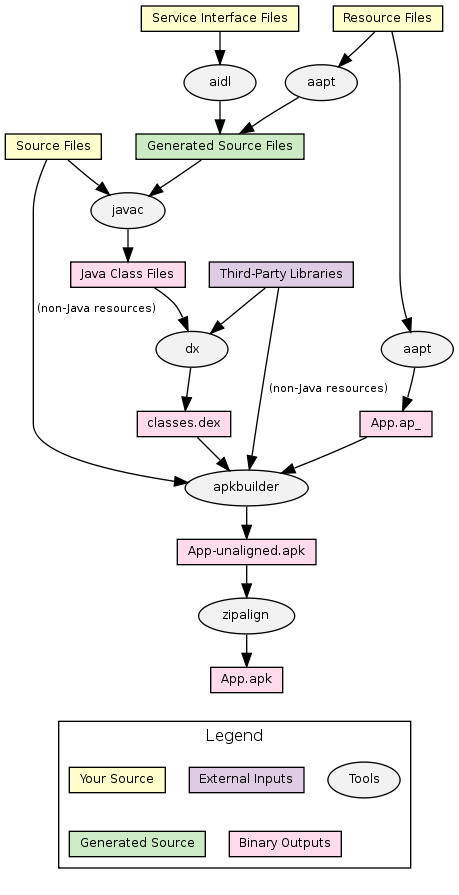
Briefly, your source and resources are compiled, converted to run on the Android VM, and then packaged up in an apk file (a zip-compatible format). In the following sections I’ll explain each step in a little more detail. Note that throughout the explanations I will refer to the default input and output locations (e.g. src/ for Java source, and bin/ for binary output) — if you customise these paths then adjust as necessary.
Resource Pre-compilation
The first step in the build process involves generation of Java source files from your Android resources. The resources, stored in the res subdirectory, include such things as icons, layouts and strings. These are compiled using the aapt tool into a file named R.java, stored in the gen/ subdirectory. If you take a look at the generated file, you will see that it defines a bunch of constants:
/* AUTO-GENERATED FILE.  DO NOT MODIFY.
 *
 * This class was automatically generated by the
 * aapt tool from the resource data it found.  It
 * should not be modified by hand.
 */
package com.zutubi.android.myapp;
public final class R {
    public static final class attr {
    }
    public static final class drawable {
        public static final int icon=0x7f020000;
    }
    public static final class layout {
        public static final int main=0x7f030000;
    }
    public static final class string {
        public static final int app_name=0x7f040001;
        public static final int hello=0x7f040000;
    }
}
The constants are used to refer to your resources, which are stored in the package file separately in a later step.
Service Interface Pre-compilation
The second build step also involves generation of Java source. If your project uses any service interfaces, you need to include the service interface definition files (which have an .aidl extension) in your project. These files superficially resemble normal Java interfaces:
package com.zutubi.android.myapp;
interface ISimpleService
{
    String echo(in String s);
}
The aidl tool is used to generate actual Java interfaces for these services. The Java source files will have the same name as the input files (with the .aidl extension replaced by .java) and are created in the gen/ subdirectory. These generated sources serve as a basis for you to implement or call the service interfaces in your own code.
Java Compilation
After the two pre-compilation steps, your project’s Java code is complete and ready to be compiled itself. This step is a standard Java compilation from .java source files (both hand-crafted and generated) to .class bytecode files. The binary bytecode files are stored in the bin/classes subdirectory.
One thing to be aware of is the classpath used to compile your source. This includes:
- The android.jar file for your target Android platform. This jar includes class and method stubs for all of the Android APIs.
- External library jars you have added to your project (all .jar files in the libs/ subdirectory).
- For test projects only: the class files and external libraries for the tested project.
Bytecode Translation
After compilation, you have standard Java bytecode, which would run on a standard Java VM. However, Android uses its own Dalvik VM, which requires a different bytecode format. Thus, after compilation, the dx tool is used to translate your class files into a Dalvik executable or .dex file. This includes the class files stored in any external library jars you have added to your project. All classes are package up in a single output file, named classes.dex, which is produced in the bin/ subdirectory.
Resource Packaging
Next, the resources are compiled into a partial Android package file. This is done by the same aapt tool that generates Java source corresponding to the resources. The resource package is created, named after your application with an ap_ suffix in the bin directory. You can use unzip to take a peek inside the package:
 jsankey@caligula:~/work/my-app/build$ unzip -t MyApp.ap_
Archive:  MyApp.ap_
    testing: res/layout/main.xml      OK
    testing: AndroidManifest.xml      OK
    testing: resources.arsc           OK
    testing: res/drawable-hdpi/icon.png   OK
    testing: res/drawable-ldpi/icon.png   OK
    testing: res/drawable-mdpi/icon.png   OK
No errors detected in compressed data of MyApp.ap_.
Note that although icon and layout files are included at their original location, they have been processed during packaging (presumably for more efficient storage and/or processing). The icons appear to be optimised but still valid images, whereas layout XML files are converted to a binary format. Strings are compiled into the binary resources.arsc file.
Debug Packaging and Signing
Now all of the components required for the final Android package are ready to be bundled up into an apk file named after your application. In the default debug mode, this build step also includes signing of the package with a debug key. Note that for release, signing is a separate step that requires access to your own key (and may prompt for a password). Android packages are assembled with the apkbuidler tool, which takes input from several sources:
- The Dalvik executable file bin/classes.dex.
- All non-Java resources from your source directory (src/).
- All non-Java resources from your external libraries (found by searching all .jar files in the libs/ subdirectory).
- Any native code shared-libraries included by your project.
- The resource package built in the previous step.
The produced package will be placed in the bin/ subdirectory, named something like MyApp-debug-unaligned.apk.
Alignment
As a final optimisation step, the package file is aligned using the zipalign tool. This step ensures that resources in the package file are aligned on 4-byte word boundaries. This allows the Dalvik VM to memory-map those parts of the file for more efficient access. You can read more about alignment on the Android Developers Blog. This step takes the -unaligned package as input, and produces an output something like bin/MyApp-debug.apk. This is the final, signed, aligned Android package — ready to be installed on an Android device!
JavaScript Compressor Comparison
So following on from last weeks post I have taken a closer look at the common tools used to compress JavaScript. Below is a graph of the compression ratios that these tools achieved when applied to ext-all-debug.js, the uncompressed JavaScript from the popular ExtJS framework :
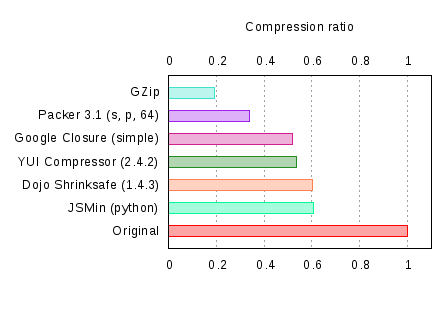
Some points to note are:
- GZip is rather different from the other forms of compression in that it a compression of the content rather than the JavaScript, and therefore can be applied to compressed JavaScript. I have included it in the graph to provide an indication of the level of compression it can provide.
- The simple compilation option was used with Google Closure as this is typically the one that will be used. For a discussion on why, check out the excellent post on A Log of Javascript.
- Packer is similar to GZip in that it is more a compression of the content rather than JavaScript itself. Unlike GZip however, it has a runtime cost associated with the unpacking of the JavaScript on each page load.
Below is a graph of the processing time required for the above compressions:
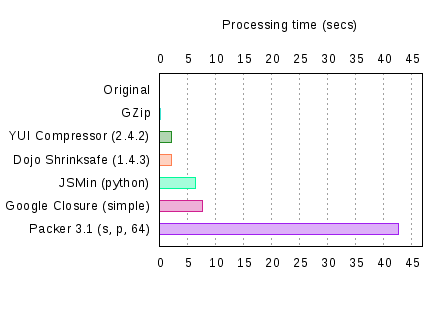
Aside from Packer, there is not a lot of difference, and since all of the processing is done before deployment the compression cost does not impact the performance of the JavaScript.
The final graph below shows the compression ratios where each of the compressed JavaScript files are then GZipped, as is more typical of production environments.
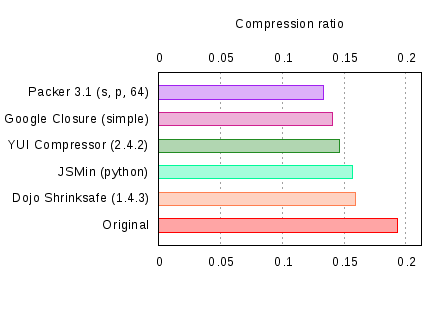
In the final analysis it is clear that you should GZip your JavaScript, although be aware that not all browsers correctly handle GZipped content. As to which of the other compression tools you use, it comes down to your JavaScript. My experience showed Packer to produce the best results for ext-all-debug.js whereas Julien found that the YUI Compressor is a better choice for jQuery. CompressorRater can help with this task although it does not yet include Google Closure.
Setting Up An Android Project Build
As the owner of a G1 I’ve played around at several times in the past with simple Android application development. The SDK tools and introductory documentation provided by Google make it easy to get started. Before embarking on a more serious project, however, I decided to figure out how to set up projects in a systematic way that allows for both development and reliable scripted builds (e.g. for continuous integration). Creating a project layout and build that works takes a few steps and tweaks, not all of which are covered in the documentation I found, so I thought I’d walk through my approach to it for those that are interested.
Goals
My goals for this project setup were as follows:
- Support for development in Eclipse using the ADT. Although Eclipse is not my first choice of IDE, it is decent enough and compelling when combined with the ADT tooling.
- Support for building from the command-line, with no dependency on an IDE.
- The ability to run tests on a device (or emulator) using the SDK testing and instrumentation support.
- Containment of all components within a single directory which can be easily versioned.
This all seems like it should be simple: the Android SDK has support for Eclipse, Ant builds, and testing. However, putting it all together can take some work, because not all the pieces play together as nicely as you might hope. First of all, although it is easy to create either an Eclipse project or an Ant one (and both cases are well documented), I would like both. I experimented with two methods: creating an Eclipse project either before or after setting up the Ant build. In my experience adding an Eclipse project to an existing Ant build proved more troublesome, and more difficult to debug if there was an issue. So I recommend starting by setting up your projects (application and test) in Eclipse first.
Setting Up the Eclipse Projects
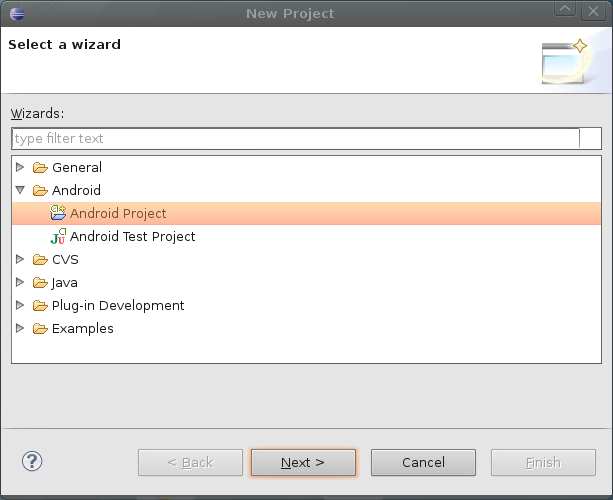
Select File > New > Project, and choose Android Project in the dialog:
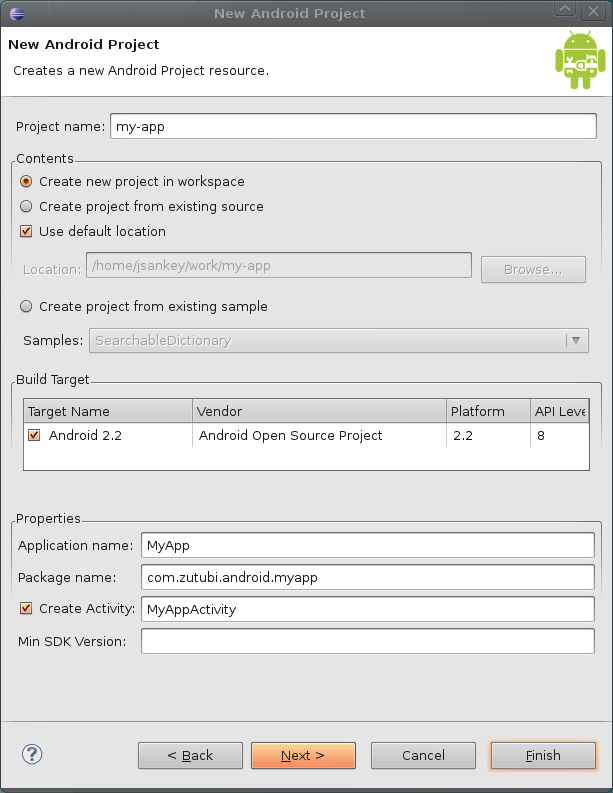
Fill in your Project, Application, Package and Activity names:
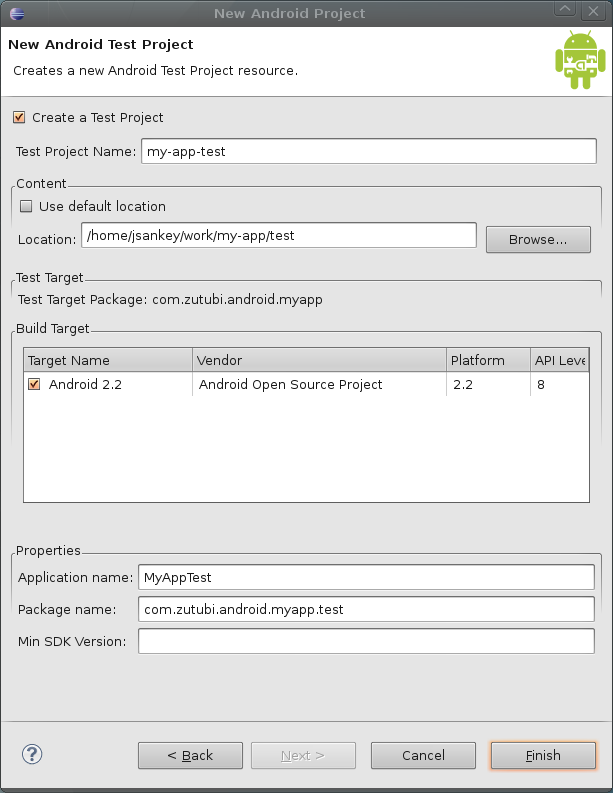
Click Next, then check the box to Create a Test Project. So that both projects live under simple, single root directory, uncheck the Use default location box, and specify the location as the “test” subdirectory of your main application’s directory:
Click Finish and the easy part is done: you should have two new projects in your workspace, with the test project nested neatly within the main one1. If you list the contents of your application’s directory, you should see something like:
jsankey@caligula:~$ ls -a1 work/my-app/
.
..
AndroidManifest.xml
assets
bin
.classpath
default.properties
gen
.project
res
.settings
src
test
Likewise, the test subdirectory should contain:
jsankey@caligula:~$ ls -a1 work/my-app/test
.
..
AndroidManifest.xml
assets
bin
.classpath
default.properties
gen
.project
res
.settings
src
Adding a Simple Test Case
At this point, it’s worth adding a simple test case to your test project as a starting point. This will allow you to experiment with the Eclipse setup and (forthcoming) Ant builds. To do this, navigate to your test project and select File > New > Class. To actually utilise the instrumentation support in the test project, have your test class extend android.test.ActivityInstrumentationTestCase2:
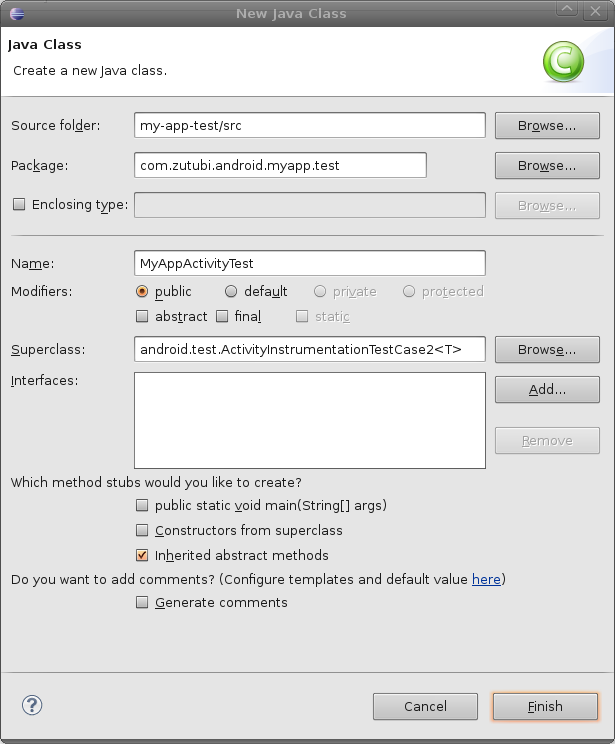
You’ll need to fill in the generic type parameter for this class, add a constructor, and add a simple test case:
package com.zutubi.android.myapp.test;
import com.zutubi.android.myapp.MyAppActivity;
import android.test.ActivityInstrumentationTestCase2;
public class MyAppActivityTest extends ActivityInstrumentationTestCase2<MyAppActivity> {
	public MyAppActivityTest() {
		super("com.zutubi.android.myapp", MyAppActivity.class);
	}
	public void testSanity() {
		assertEquals(2, 1 + 1);
	}
}
To try it out, select Run > Run As > Android JUnit Test and choose (or start) a device. If the universe is in working order, the test should pass!
Adding Ant Builds
To add standard Android Ant builds to the existing projects, I used the android command line tool from the SDK. Firstly, I added a build to the main application using android update project:
jsankey@caligula:~$ cd /home/jsankey/work/my-app
jsankey@caligula:~/work/my-app$ android update project -p .
Updated local.properties
Added file ./build.xml
It seems that there are sub-projects. If you want to update them
please use the --subprojects parameter.
As the output suggests, this command adds an Ant build.xml file to your project, and a local.properties file that stores the location of the Android SDK. Notice that the tool has picked up the fact that there is a test/ subdirectory with another project in it. However, do not be tempted to take its advice to run with the -subprojects flag: this will treat your test project as a regular project. Instead, change into the test/ subdirectory and run android update test-project:
jsankey@caligula:~/work/my-app$ cd test
jsankey@caligula:~/work/my-app/test$ android update test-project -p . -m ..
Resolved location of main project to: /home/jsankey/work/my-app
Updated default.properties
Updated local.properties
Added file ./build.xml
Updated build.properties
Again, the build.xml and local.properties files are added, although this time the build file will contain test rules. Notice that the relative path to the main project is passed using the -m flag. You can see the effect of this in the created build.properties file, which sets the value of tested.project.dir.
At this point you can build the project and run the tests from the command line. First ensure that you have only one device available (e.g. one emulator running), then, in the test/ subdirectory where we left off, run ant run-tests:
jsankey@caligula:~/work/my-app/test$ ant run-tests
... clipped several lines of output ...
run-tests:
     [echo] Running tests ...
     [exec]
     [exec] com.zutubi.android.myapp.test.MyAppActivityTest:.
     [exec] Test results for InstrumentationTestRunner=.
     [exec] Time: 0.158
     [exec]
     [exec] OK (1 test)
     [exec]
     [exec]
BUILD SUCCESSFUL
Total time: 10 seconds
Excellent: now we have the build and test working with both Eclipse and Ant (or so it seems…).
Separating the Output Directories
Although on the surface our two methods of building appear to work, once you start working in this environment you will notice problems. Most likely, you will start to see errors showing up in your Eclipse build (or the Android Console) after builds from the command line. By default both the Eclipse and Ant builds use the same folders for generated source (gen/) and output (bin/), which causes this conflict. The Eclipse project does not react well to changes that occur underneath it.
To solve this problem, we can force the two different builds to use different output locations. The Ant build makes it easy to override both the generated source and output locations, using gen.dir and out.dir properties. The best place to set these properties is in the build.properties file for each of the projects:
out.dir=build
gen.dir=build/gen
Note that you will need to create build.properties for your main project (your test project should already have one). I chose to put the gen/ directory used by Ant under the output directory just to tidy things up a little.
This should be all that is required, however, thanks to a bug in the default Ant rules, if you customise the output directory your test project will not find the output of your main project to build against. To fix this, you need to edit test/build.xml, and add the line:
<property name="extensible.classpath" value="${tested.project.absolute.dir}/${out.dir}/classes"/>
just before the closing </project> tag. This assumes your test and main projects have the same out.dir, which although slightly lazy is a simpler than loading the main project’s properties to get its out.dir (and a sane assumption in my book).
You can make sure everything works by doing clean builds using Ant:
jsankey@caligula:~/work/my-app/test$ cd ..
jsankey@caligula:~/work/my-app$ ant clean
Buildfile: build.xml
    [setup] Android SDK Tools Revision 6
    [setup] Project Target: Android 2.2
    [setup] API level: 8
    [setup] WARNING: No minSdkVersion value set. Application will install on all Android versions.
    [setup] Importing rules file: platforms/android-8/ant/ant_rules_r2.xml
clean:
   [delete] Deleting directory /home/jsankey/work/my-app/build
   [delete] Deleting directory /home/jsankey/work/my-app/build.gen
BUILD SUCCESSFUL
Total time: 0 seconds
jsankey@caligula:~/work/my-app$ cd test
jsankey@caligula:~/work/my-app/test$ ant clean run-tests
... clipped several lines of output ...
run-tests:
     [echo] Running tests ...
     [exec]
     [exec] com.zutubi.android.myapp.test.MyAppActivityTest:.
     [exec] Test results for InstrumentationTestRunner=.
     [exec] Time: 0.147
     [exec]
     [exec] OK (1 test)
     [exec]
     [exec]
BUILD SUCCESSFUL
Total time: 9 seconds
Then switch back to Eclipse, try editing and saving the activity and test cases and ensure everything is happy.
Checking It In
Finally, you can check the project into your version control system. I won’t go into the tool-specific details, just make sure you check in the correct files. You should exclude:
- The bin/, build/, and gen/ directories: as these all contain build output.
- The files local.properties and test/local.properties: which are intended to contain properties specific to your machine (e.g. the location of the Android SDK).
Make sure you don’t forget to check in the hidden Eclipse files .classpath, .project and .settings. By structuring the projects so they live under a single top-level folder, it should be easy to add them to the version control server of your choice.
Wrap Up
That covers the basics of setting up an Android project, with tests, for both development and automated builds. Although some tweaking is required, this setup is still built upon the tooling provided by the Android SDK. I hope that this will mean it is easy to take advantage of new capabilities when new SDK versions are released (which happens pretty frequently at the moment!).
—
1 For reasons unknown to me, when my projects were first created they had build errors. A clean rebuild magically fixed the problem.
Where Am I?


A little madness is the blog of Daniel Ostermeier and Jason Sankey. We are the founders of zutubi, a company based in Sydney, Australia that makes software for software developers.
Our flagship product is Pulse, an easy to use yet powerful and adaptable continuous integration server. We’d love you to try it free today!